Change passwords on Steam accounts after purchase
Automatic password changes ensure that only you have access to your accounts.
By InoTeam
•
Users lose their Steam accounts for various reasons:
- The seller changed the passwords after the sale.
- The service was hacked.
- Accidental leaks from the seller or buyer.
We recommend changing your passwords after purchase to ensure that you remain the sole owner. In this article, we show you how to automatically change passwords on Steam accounts in just a couple of clicks.
How to change Steam passwords
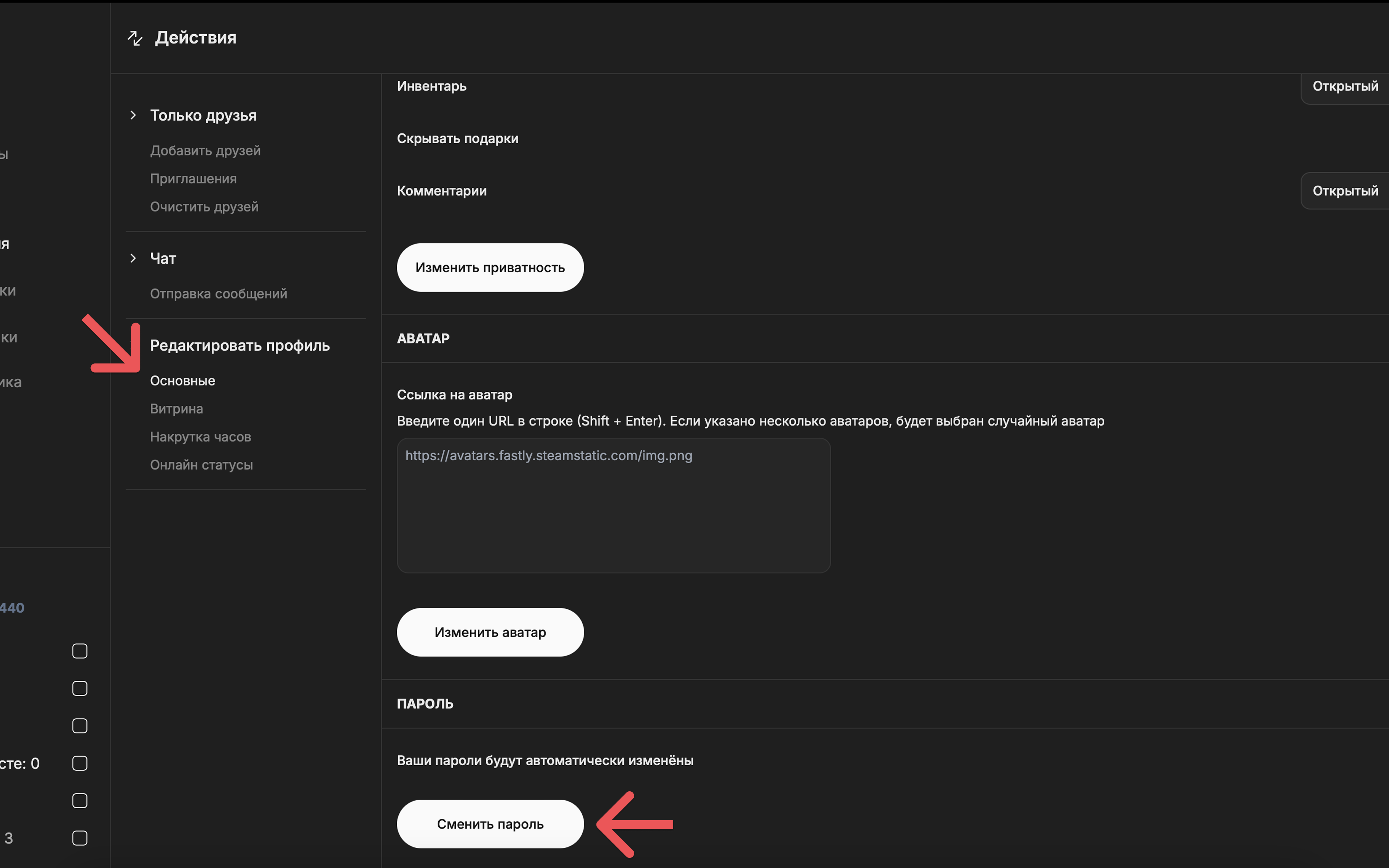
1. Go to: Actions → Edit Profile → Change Passwords.
2. Select the accounts for which you want to change the password.
3. Click Start. The program will automatically set a random password for all selected accounts.
How to export new passwords
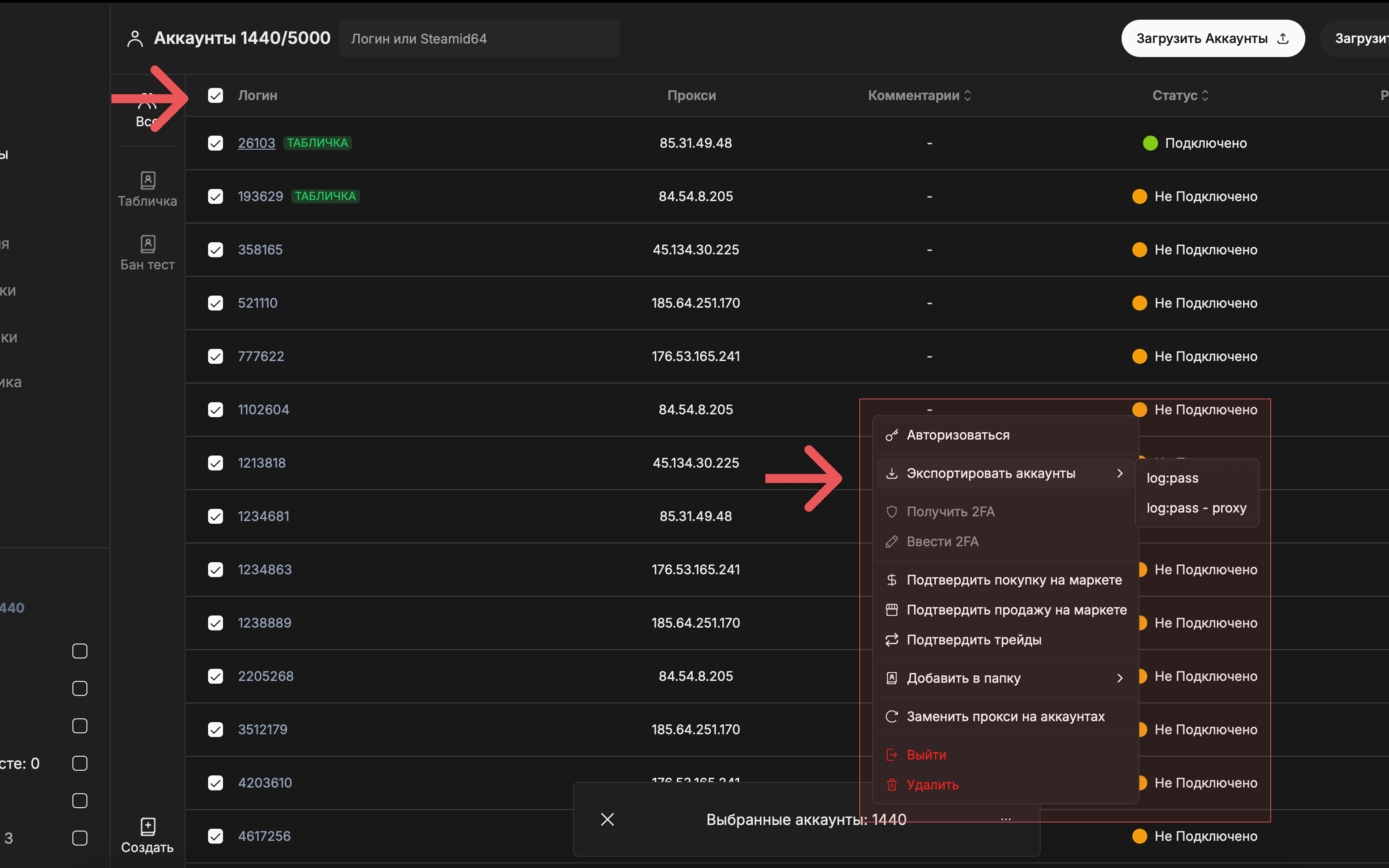
1. Open the Accounts tab.
2. Select the desired accounts.
3. Click Export log:pass.
4. A list of accounts with new passwords will appear in the clipboard.
⚠️ Possible restrictions
Steam restricts password changes from certain IP addresses.
If you receive an error, change your proxy service and try again.


